Common Terms
The most important distinction in Schedule I modding is between IL2CPP and Mono mods.
IL2CPP vs Mono
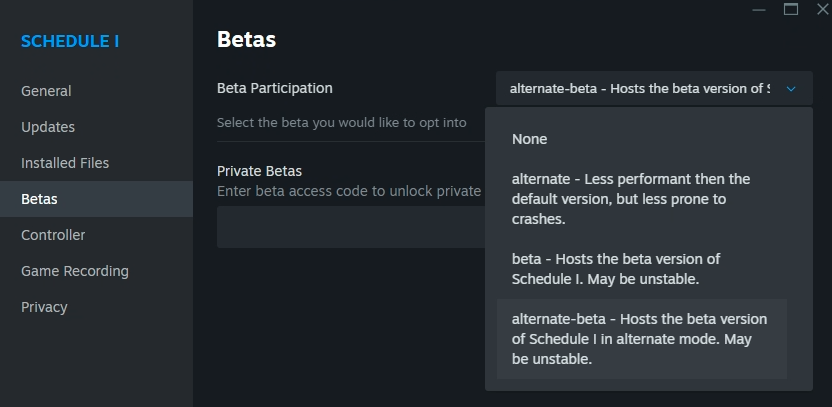
Schedule I supports two different scripting backends: IL2CPP and Mono. They can be switched between by right-clicking the game in the Steam library, selecting Properties, and then choosing the desired backend under the Betas tab.
none = IL2CPP
beta = IL2CPP
alternate = Mono
alternate-beta = Mono
None here refers to the main branch of the game.
Since beta can refer to either options, due to Steam’s vague naming, it is commonplace to refer to the main branch as IL2CPP and the alternate branch as Mono. This is not an official naming, but it is widely used in the community. ex. IL2CPP mod - mod for the none or beta branch, Mono branch - alternate or alternate-beta.
Mods can be made for either backend, but they are not compatible with each other. IL2CPP mods will not work with Mono and vice versa.
Log files
When you run Schedule I with MelonLoader, it generates log files that can help you troubleshoot issues with mods or plugins. This file contains information about the game, mods, and plugins that were loaded, as well as any errors or warnings that occurred during the loading process. Additionally, the game generates a Player.log file in C:\Users\<user>\AppData\LocalLow\TVGS\Schedule I.
MelonLoader log file locations
Default location
If you installed MelonLoader manually (or via an installer), latest log file will generate in the following location:
<game directory>/MelonLoader/Latest.log
Mod manager locations
If you are using a mod manager, the log file may be located in a different directory. Here are some common locations for popular mod managers, assuming you are using the default profile named “Default”:
C:\Users\<user>\AppData\Roaming\r2modmanPlus-local\ScheduleI\profiles\Default\MelonLoader - r2modman
C:\Users\<user>\AppData\Roaming\com.kesomannen.gale\schedule-i\profiles\Default\MelonLoader - Gale
C:\Users\<user>\AppData\Roaming\Thunderstore Mod Manager\DataFolder\ScheduleI\profiles\Default\MelonLoader - Thunderstore Mod Manager
C:\Users\<user>\AppData\Roaming folder by typing %appdata% in the File Explorer address bar and pressing Enter.Save files
Save files for the game are stored in the C:\Users\<user>\AppData\LocalLow\TVGS\Schedule I\Saves\<steam_id> directory. Be sure to back up your save files before installing or updating mods, as some mods may modify or delete save files.
If you’re using Proton, the save directory can be found in /home/<user>/.local/share/Steam/steamapps/compatdata/3164500/pfx/drive_c/users/steamuser/AppData/LocalLow/TVGS/ due to how Proton handles its wineprefix.
Last updated 06 Jan 2026, 18:10 +0100 .